[UI5] 화면 XML View 만드는 방법( 입력 칸, 아이콘, 버튼 넣기 )
2025.12.09 - [Ⅰ. ERP/7. 프로젝트] - [UI5] SAPUI5 Dark Theme 적용 방법
SAPUI5를 처음 공부하면 제일 먼저 부딪히는 게 바로 XML View로 화면 만드는 방법이에요.
Controller, View, 네임스페이스… 처음엔 좀 복잡해 보이지만, 사실 구조만 알면 정말 단순합니다.
오늘은 제가 직접 작성한 코드를 기준으로,
SAPUI5 화면이 어떤 구조로 만들어지고 어떻게 동작하는지
딱 필요한 부분만 깔끔하게 정리해보겠습니다.
SAPUI5 XML View의 기본 구조
SAPUI5에서 화면(View)은 대부분 XML 기반으로 작성합니다.
화면 전체를 하나의 View 파일에서 정의하고, 버튼 클릭 같은 동작은 Controller에서 처리하는 구조입니다.
<mvc:View xmlns:mvc="sap.ui.core.mvc"
          xmlns="sap.m"
          xmlns:form="sap.ui.layout.form"
          xmlns:c="sap.ui.core"
          controllerName="com.training.student09.controller.View1">
    ...
</mvc:View>
- mvc:View → “나는 SAPUI5 View입니다!” 선언
- xmlns="sap.m" → 버튼/인풋 같은 기본 UI 라이브러리
- xmlns:form → SimpleForm 사용하기 위한 네임스페이스
- controllerName → 이 View와 연결될 Controller 지정
즉, 화면 구조는 XML이지만,
이벤트 처리나 로직은 Controller에서 진행되는 MVC 패턴입니다.
App → Page 구조로 전체 화면 틀 잡기
SAPUI5는 앱 전체를 <App>으로 감싸고, 그 안에 <Page>를 넣어 화면을 구성합니다.
SAPUI5는 화면을 ‘페이지 단위’로 다루기 때문에 App, Page를 이용해서 감싸줘야합니다.
<App id="App">
    <pages>
        <Page id="page" title="{i18n>title}">
            <content>
                ...
            </content>
        </Page>
    </pages>
</App>
- App: 앱 전체를 감싸는 컨테이너
- Page: 실제 보여지는 화면 하나
- i18n title: 다국어 지원 (i18n 파일의 title 텍스트를 가져옴)
SimpleForm으로 입력 화면 만들기
<form:SimpleForm id="sf01" editable="true">
    ...
</form:SimpleForm>
Toolbar에 버튼 넣기 (저장 등 기능 버튼)
<form:toolbar>
    <Toolbar>
        <ToolbarSpacer/>
        <Button text="Save Customer from View"
                icon="sap-icon://add-contact"
                id="button0"
                press=".onCreate"/>
        <Button text="Save Customer from View(toast)"
                id="button1"
                press=".onCreate1"/>
    </Toolbar>
</form:toolbar>
여기서 중요한 부분은 버튼의 press=".onCreate" 속성입니다.
XML View에서는 버튼 이벤트 이름 앞에 .을 붙여서
“이 View의 Controller 안에 있는 함수”를 호출하게 돼요.
따라서 Controller에는 다음 함수들이 있어야 합니다.
onCreate: function () { ... }
onCreate1: function () { ... }
그리고 ToolbarSpacer를 쓰면 왼쪽에 버튼이 생성되는데 오른쪽으로 붙게 됩니다.
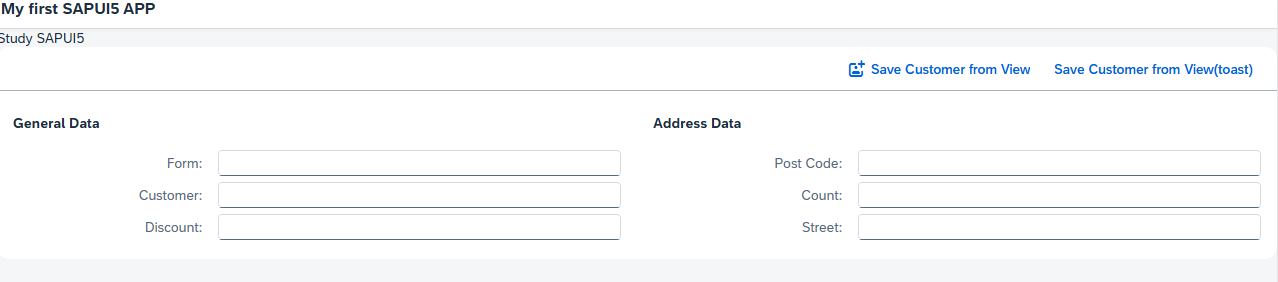
실제 Form 내용 구성 (Label + Input)
화면 하단은 두 개의 섹션으로 나눠서 구성했습니다.
- General Data
- Address Data
각 섹션은 Title로 제목을 표시하고
그 아래에 Label/Input을 배치하는 방식입니다.
<form:content>

    <c:Title text="General Data"/>
    <Label text="Form"/>
    <Input/>

    <Label text="Customer"/>
    <Input id="inpName"/>

    <Label text="Discount"/>
    <Input/>

    <c:Title text="Address Data"/>
    <Label text="Post Code"/>
    <Input/>

    <Label text="Count"/>
    <Input/>

    <Label text="Street"/>
    <Input/>

</form:content>
이런 구조 덕분에 SAPUI5 화면은
PC / 태블릿 / 모바일에서도 자동 정렬되는 반응형 UI가 됩니다.
Controller에서 이벤트 처리
Controller에는 반드시 아래처럼 함수가 있어야 합니다:
onCreate: function() {
    // 저장 로직
},

onCreate1: function() {
    // 토스트 메시지 등 추가 동작
}
전체 흐름 정리
SAPUI5 화면을 만들 때는 항상 이 순서로 생각하면 됩니다.
1) View 뼈대 만들기
mvc:View네임스페이스 선언controllerName 지정
2) App/Page로 화면 전체 구조 만들기
3) SimpleForm으로 입력 폼 구성
4) Toolbar + 버튼 배치 (이벤트 연결)
5) Label/Input으로 세부 필드 구성
6) Controller에서 이벤트 처리
ICON 넣을때 참고 사이트
Toolbar에서 버튼 넣을 때 아이콘 넣은 구문이 있는데,
UI5 Demo kit 사이트 밑에 Icon Explorer 클릭하면 ICON 을 쉽게 찾고 ID 를 알 수 있다.
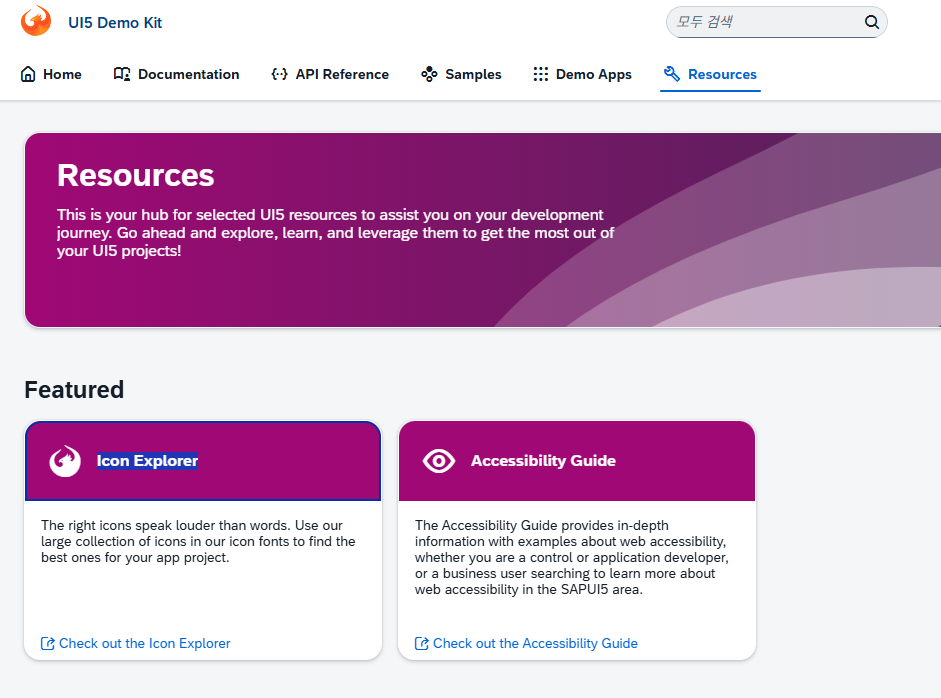
https://sapui5.hana.ondemand.com/#/resources
SAPUI5 SDK - Demo Kit
sapui5.hana.ondemand.com
ICON Explorer 화면이다.
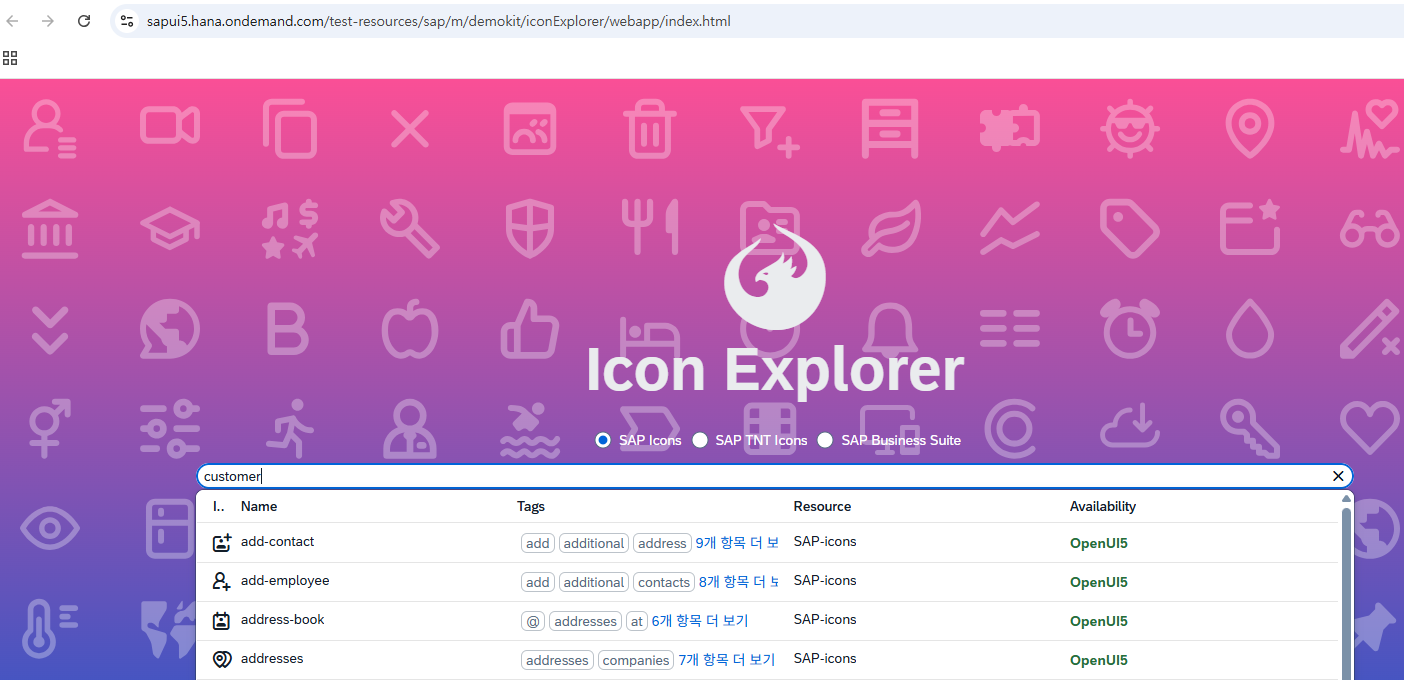
https://sapui5.hana.ondemand.com/test-resources/sap/m/demokit/iconExplorer/webapp/index.html
Icon Explorer
sapui5.hana.ondemand.com
Main view 소스
<mvc:View xmlns:mvc="sap.ui.core.mvc" xmlns="sap.m" xmlns:form="sap.ui.layout.form"
xmlns:c="sap.ui.core"
controllerName="com.training.student09.controller.View1">
    <!--event handler는 .on을 붙힘 -->
   <App id="App">
    <pages>
        <Page id="page" title="{i18n>title}">
            <content>
                <Text id = "text01" text = "Study SAPUI5" />

               <!-- <Button  text="Save Customer from View" id="button0" press=".onCreate"/> -->
               <!-- <Button  text="Save Customer from View(toast)" id="button1" press=".onCreate1"/> -->
            <form:SimpleForm id = "sf01" editable="true">

            <!-- Toolbar에 어떤 객체를 넣을 수 있는지 document확인 -->
            <form:toolbar>
                <Toolbar>
                    <ToolbarSpacer/>
                    <Button  text="Save Customer from View" icon = "sap-icon://add-contact" id="button0" press=".onCreate"/>
                    <Button  text="Save Customer from View(toast)" id="button1" press=".onCreate1"/>
                </Toolbar>
            </form:toolbar>

                <form:content>

                    <!-- General Data 영역 -->
                    <c:Title id="t01" text="General Data"/>
                    <Label text="Form"/>
                    <Input value=""/>

                    <Label text="Customer"/>
                    <Input id ="inpName" value=""/>

                    <Label text="Discount"/>
                    <Input value=""/>

                    <!-- Address Data 영역 -->
                    <c:Title id="t02" text="Address Data"/>
                    <Label text="Post Code"/>
                    <Input value=""/>

                    <Label text="Count"/>
                    <Input value=""/>

                    <Label text="Street"/>
                    <Input value=""/>


                </form:content>
            </form:SimpleForm>


            </content>

        </Page>
    </pages>
</App>
</mvc:View>
'Ⅰ. ERP > 7. 프로젝트' 카테고리의 다른 글
| [UI5] SAP Data types 설정법 (1) | 2025.12.12 |
|---|---|
| [UI5] SAPUI5 Dark Theme 적용 방법 (0) | 2025.12.10 |
| [UI5] SAPUI5 View 만드는 방법 설명 (View, Controller, Manifest, 디버깅) (0) | 2025.12.09 |
| [UI5] Bootstrap, Module 설명 (0) | 2025.12.09 |
| [UI5] SAP UI5 셋업, BTP 연결, SAP Cloud Connector세팅, SAP 배포 (0) | 2025.12.09 |


댓글